3D-Engine
About Omega Engine
Omega Engine is a class project made by studens of CITM, supervised by Miquel Suau Gonzàlez. The main goal of this project was to create a game engine for learning pruposes. Maybe has some bugs or not the best optimization, but it is honest work :D
Core SubSystems
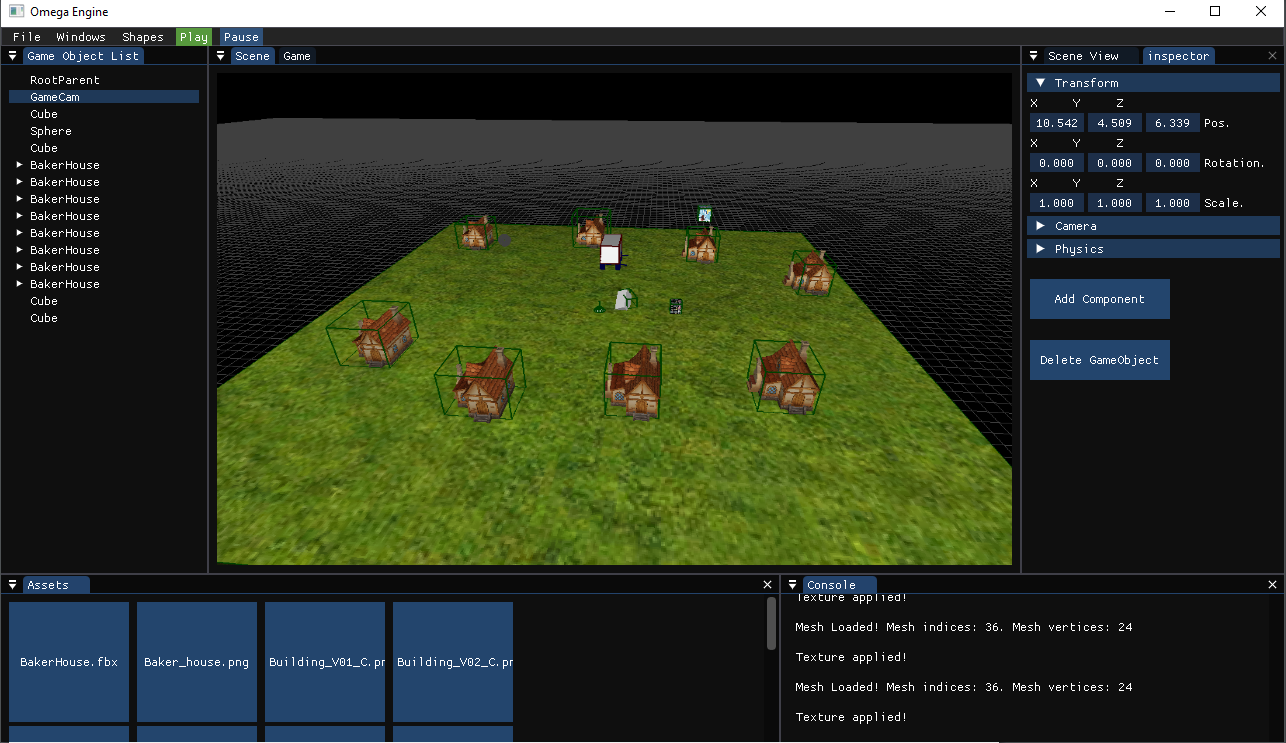
There are 3 modes of rendering: Normal, with checkers view and Wireframe. Also, there are other settings in the view like fog.
The meshes are grouped in a game object system with parents and children. Finally, if the file has attached a texture, the engine will automatically set a meterial with it in the game object.
Omega Engine has an Assets Manager to set up the scene to your liking.
Physics core
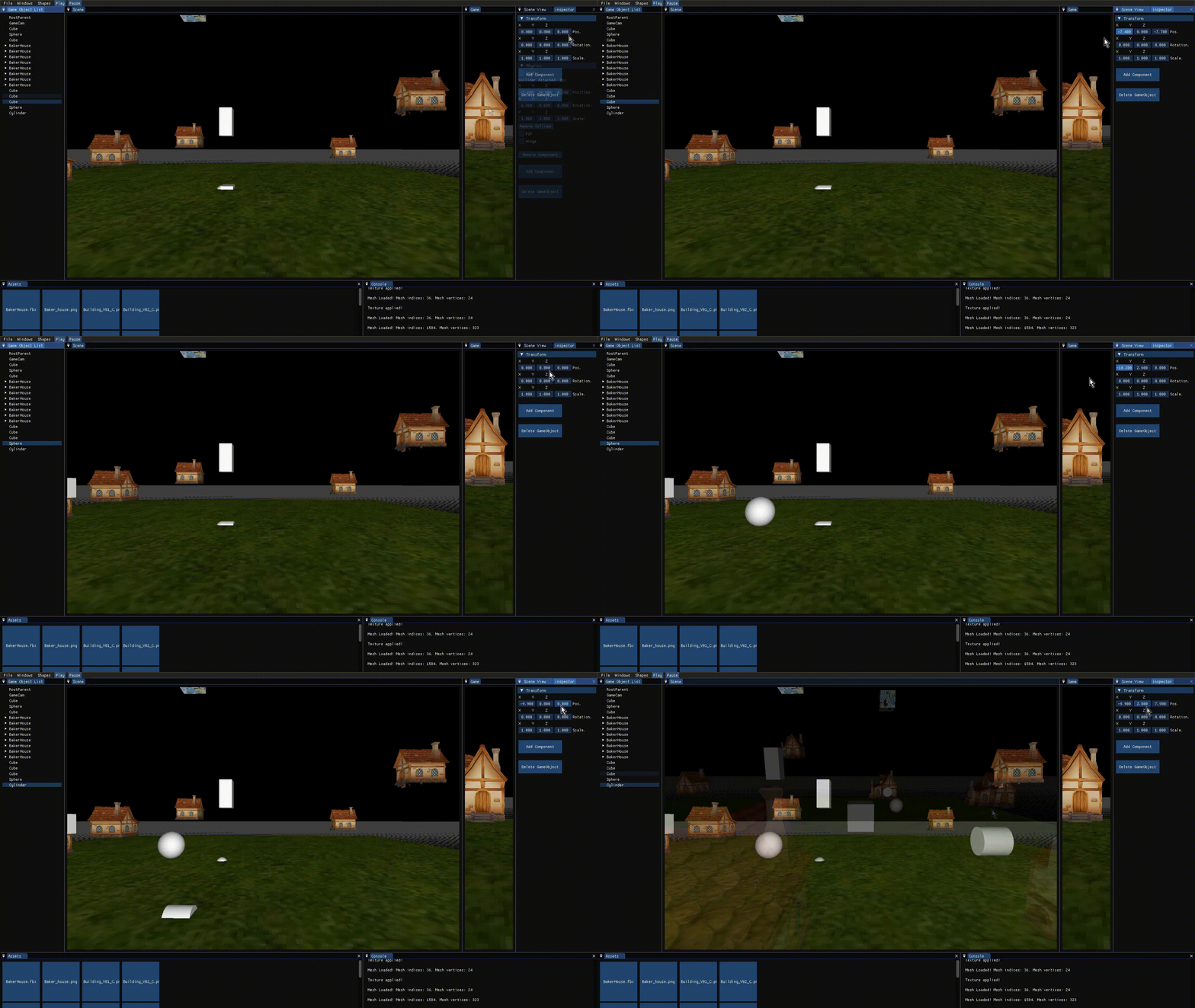
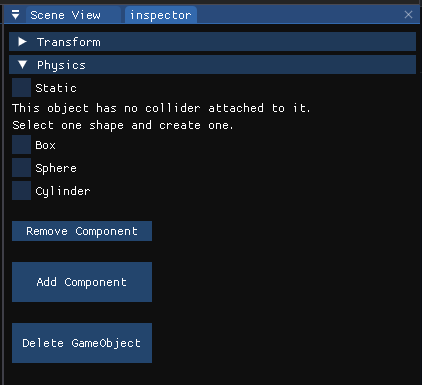
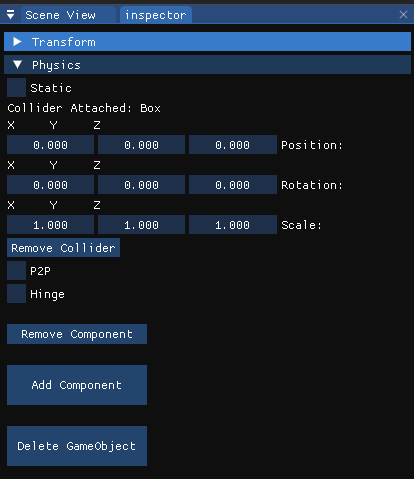
You can add the Physics component to the GameOjects and add them a collider, static or not. Adjust it to fit the form which you like and press the Play button to see all the magic happening. If you press Pause, the game will stop and you can resume clicking again.
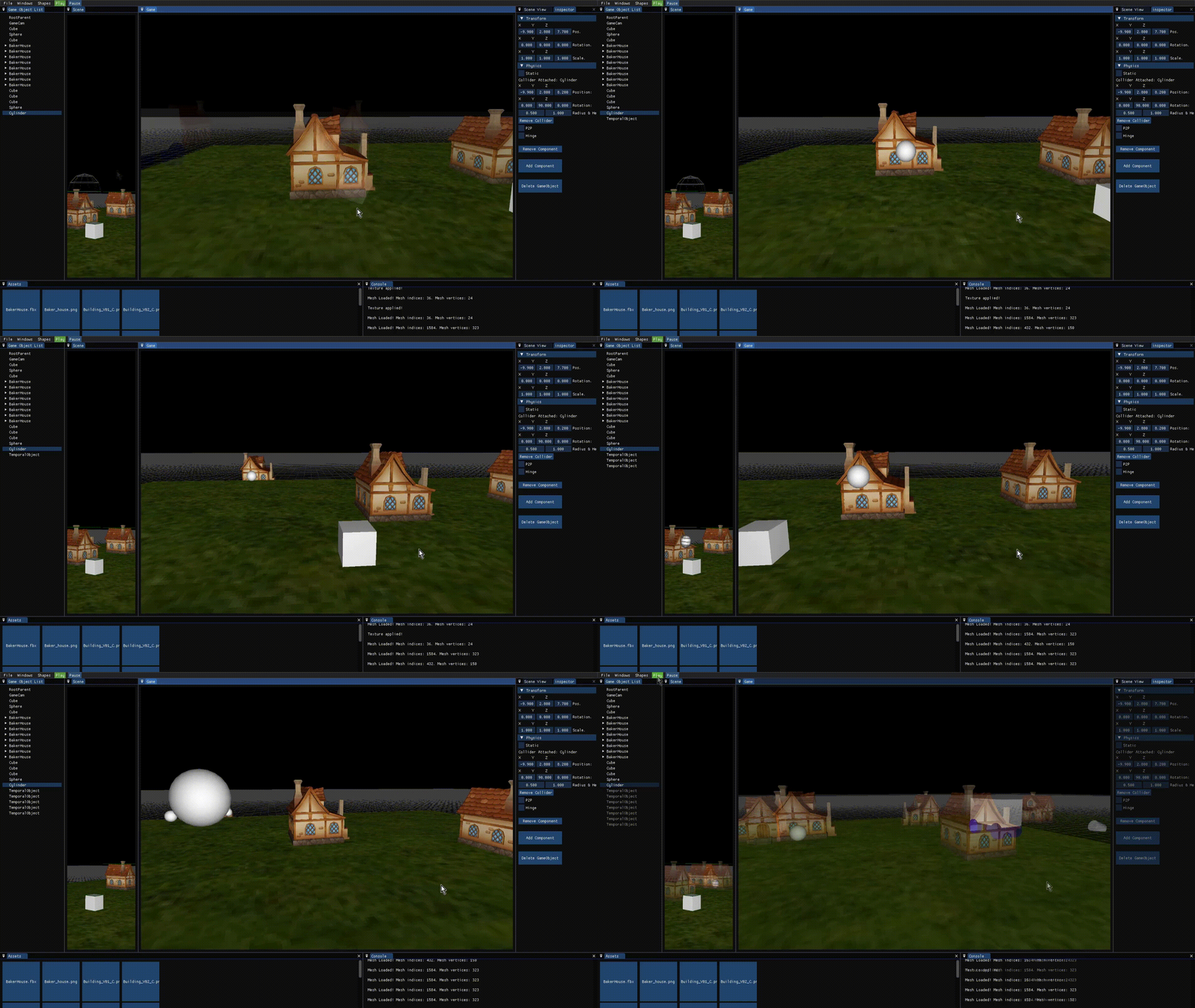
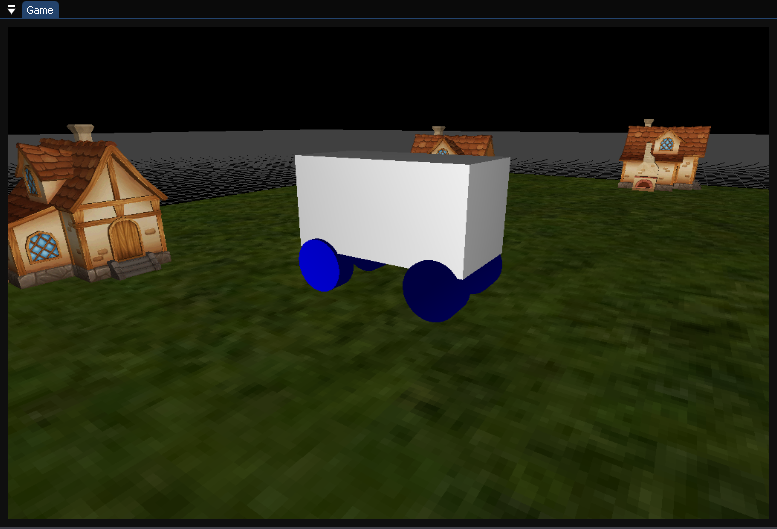
You can also add cosntraints and play with a vehicle, pushing the houses out of the scene, for instance. The Camera can shoot balls too.
When you have set up the scene correctly, you can save it and the next time you open the engine, it will be restored, so don not worry about that.
Showcase Video
Controls
Editor Camera
- W/S -> To move front and backwards,
- A/D -> To move laterally
- E/C -> To move up and down.
- Mouse wheel -> To zoom in or zoom out.
- Right click -> To rotate the camera
- Alt + left -> Click to rotate around the selecetd game object.
- F -> Camera fouses on the selected GameObject in the hierarchy.
Game Camera (Only if playing the game)
- W/S -> To move front and backwards,
- A/D -> To move laterally
- E/C -> To move up and down.
- Mouse wheel -> To zoom in or zoom out.
- Right click -> To rotate the camera
- Alt + left -> Click to rotate around the selecetd game object.
- F -> Camera fouses on the selected GameObject in the hierarchy.
- 1 key -> Shoot balls
- F2 -> Enable/Disable the colliders wireframe lines in the Game viewport
Car (Only if playing the game)
Keyboard Arrows:
- UP -> Moves Forward
- Down -> Brakes
- Right/Left -> Turns to the Left/Right
Performance
When initializing the engine, all the assets in the Assets folder will be serialized into custom format files “.chad”. These can be located at Library/Meshes and Library/Materials folders, which are automatically generated too.
These files contain all the necessary info of the assets and are needed for the engine to work, so it’s important not to remove them manually. Don’t worry, they will be removed when closing the engine. You can also drag and drop files from any directory of your computer to the engine. These will be added to the Assets folder and a new .chad file will be generated. We support .png, .jpg & .dds files for textures and .fbx for models.
Features
Omega engine is capable of creating GameObjects from the assets in the Assets windows via Drag & Drop. If you click in the asset, you can see more information in the inspector. You can drop it in the Viewport or in the hierarchy, inside the root object or any other that will become its parent. If the asset is a material, you can drop it into an existing GameObject to set it up as its texture. Also, if the GameObject has already attached a relative path of a texture, and this is in Assets folder, the GameObject will load when being created.
You can select a GameObject clicking it in the hierarchy. Then, you can view its properties in the Inspector and modify his transform component. You can also add new components there like the physics one. Then, you can select if it is static and choose a collider for them, adjust the form and set a constraint with another.
There is also a camera viewport which FOV and Near Plane Distance you can change.
About Us
Xavier Casadó Benítez
(Akage369) Github
 Xavi’s contribution:
- Resource management
- Assets management
- File Sytem
- Save and load
- Hierarchy
- Bullet3D implementation
Xavier López Martín
(Xavierlm11) Github
 Xavi’s contribution:
- UI
- Game objects & components
- Camera and Viewports
- Objects transform
Lincense
MIT License
Copyright (c) 2022 Xavierlm11
Permission is hereby granted, free of charge, to any person obtaining a copy of this software and associated documentation files (the “Software”), to deal in the Software without restriction, including without limitation the rights to use, copy, modify, merge, publish, distribute, sublicense, and/or sell copies of the Software, and to permit persons to whom the Software is furnished to do so, subject to the following conditions:
The above copyright notice and this permission notice shall be included in all copies or substantial portions of the Software.
THE SOFTWARE IS PROVIDED “AS IS”, WITHOUT WARRANTY OF ANY KIND, EXPRESS OR IMPLIED, INCLUDING BUT NOT LIMITED TO THE WARRANTIES OF MERCHANTABILITY, FITNESS FOR A PARTICULAR PURPOSE AND NONINFRINGEMENT. IN NO EVENT SHALL THE AUTHORS OR COPYRIGHT HOLDERS BE LIABLE FOR ANY CLAIM, DAMAGES OR OTHER LIABILITY, WHETHER IN AN ACTION OF CONTRACT, TORT OR OTHERWISE, ARISING FROM, OUT OF OR IN CONNECTION WITH THE SOFTWARE OR THE USE OR OTHER DEALINGS IN THE SOFTWARE.